If you want to login to your Zoom at YorkU account through a web browser to create and/or curate your meetings, you can do so by going through the Zoom at YorkU website found at https://yorku.zoom.us.
This process is different than if you went directly through the Zoom website or, if you logged in via the Zoom application on your computer or personal mobile device (tablet or smart phone). If you choose to go that route, you will ultimately end up authenticated in the actual Zoom software interface on your device.
With the instructions on this page, you will end up on a web page that acts as your account dashboard. When the time comes, you will still end up launching the Zoom application to actually attend any meeting. The key difference with this process is that it will allow you to have access to, and control of everything you have available to you, based on your Zoom at YorkU licensing.
Through this method, you will be able to:
|
|
You will also be able to download the Zoom application; access some guides on using Zoom; initiate a service request as a way to get help with Zoom; and you will also see any current service advisories related to the Zoom at YorkU service.
Step 1: Go to the Zoom at YorkU website
Go to https://yorku.zoom.us to get to the main Zoom at YorkU website. On the welcome page, click Sign in

Step 2: Login with your Passport York (PPY) credentials
Login with your current PPY credentials. Once you have typed in your PPY username and password, you can click Login to proceed.
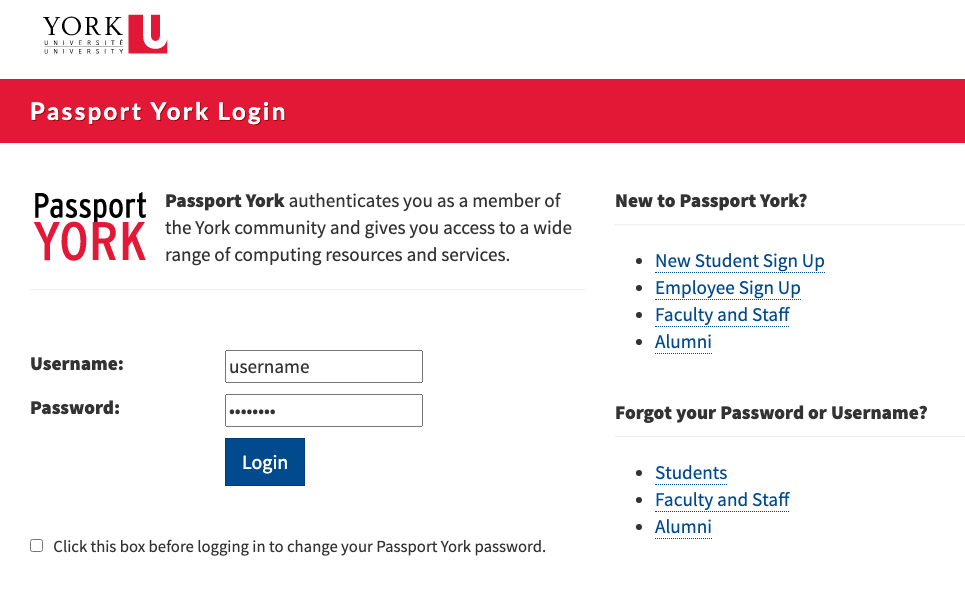
If you have any issues logging in at this stage, please ensure that your username and password are correct. You can check this by logging into eClass or any other PPY governed service. You can also try to clear your browser's cache and cookies to ensure that your browser has not retained stale login information. This can sometimes happen if you have recently changed your password or if you have not visited the site for a while and your old credentials have not yet been purged by the browser.
If you cannot log in to any of the PPY services, or continue to have issues logging on, please go to https://mms.yorku.ca to ensure that your password is current.
Step 3: You can now see your Zoom at YorkU dashboard
You are now able to exercise full control over your York University supplied Zoom account. As indicated above, you can view and change most of your account settings here.

To access the individual applications within the Zoom ecosystem, click on the grid array beside your profile picture on the top right:

Depending on your license type and available options, some of these products may be inaccessible.
If you have any questions regarding any of the Zoom services, licensing, webinars, PHIPA, etc, you may use the Search bar at the top of this article. If otherwise you cannot find what you're looking for, please let us know at ltshelp@yorku.ca, and we'll be sure to provide you with the information you need.