To use Panopto from your eClass course, you will have to:
- Add the Panopto block in your course
- Add a link to your recording folder using Panopto activity
Add the Panopto block to set up the link to your course
You must add the block to establish the connection between eClass and Panopto. Once added, a dedicated Panopto folder will automatically be created for your course, and all recordings will be stored there. Instructors enrolled in the course will receive creator access, allowing them to publish recordings to the course folder, while students will automatically have permission to view the videos. The block also gives students quick and convenient access to course recordings directly from eClass.
Follow the steps below to add Panopto to your course
- Go to your course in eClass. While on your main course homepage, turn Edit mode on located in the upper right hand corner.

- On the right side of the course click on the Open block drawer icon to expand.
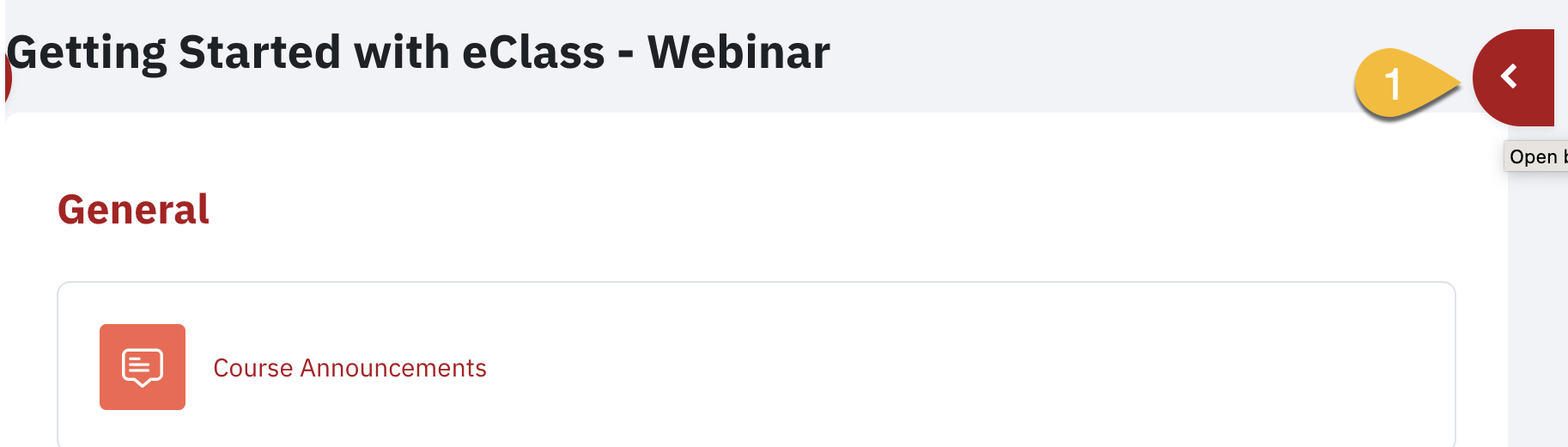
- Click Add a Block which is the first open when the block drawer is expanded.

- In the Add a Block pop up menu, scroll down and select Panopto
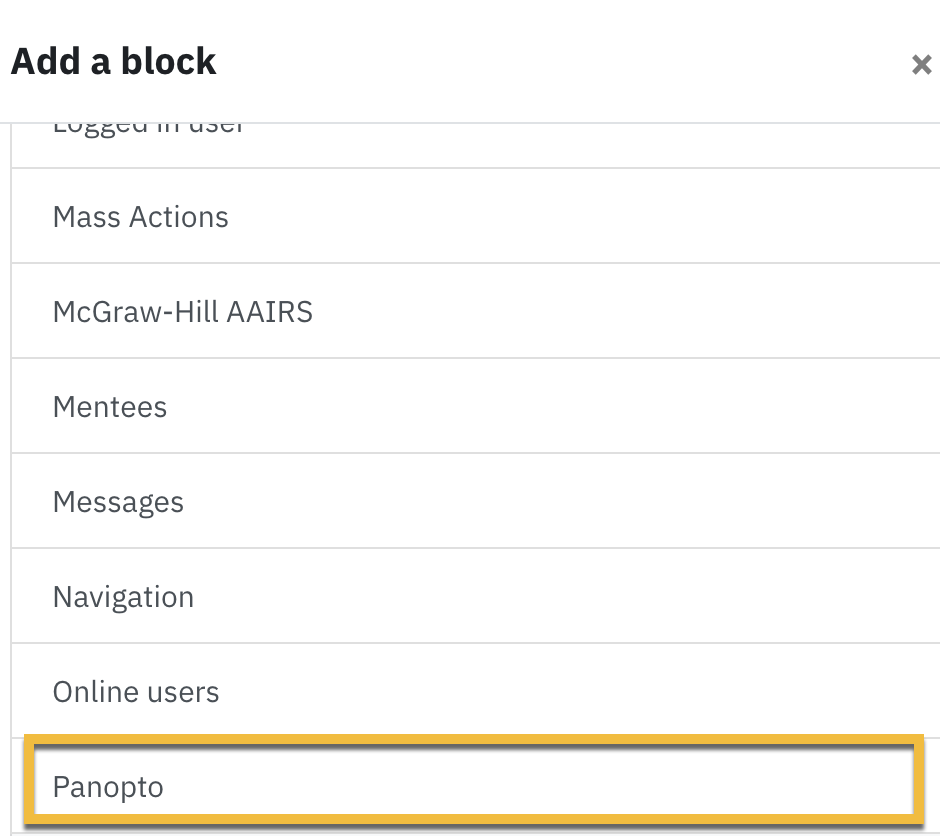
- The block will be added to the right pane (or can be moved with the arrow key to be above the General section)

6. By default, the course comes provisioned - You can check this status by clicking on the ellipses and then Configure Panopto Block although this is not typically necessary.

If the course is not provisioned, please do provision it

You may hide the Panopto block after you're done configuring it so that students don't see it.

7. If you re-added the block to the course, your Panopto block will have links to any live sessions you may have previously created, completed recordings and links to Windows/Mac recorders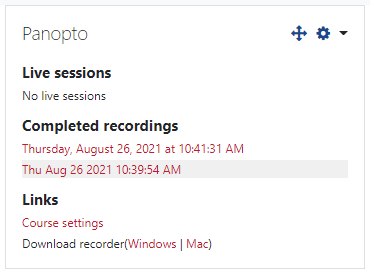
Add a link to your full recording folder
In addition to adding a block to your eClass you can also add a link to an embedded view of your folder. This will allow students to navigate easily to other recordings for this course.
- Go to your course in eClass. While on your main course homepage, turn Edit mode on located in the upper right hand corner.
- Click on the + under the section where you'd like to add the link and press on Activity or resource in the section where you would like to add the link to the Panopto folder

3. Select Panopto in the pop-up (also listed under Activities tab), or you can type Panopto in the Search field and then click Add. The Adding a new External tool page will appear
4. Give an Activity name. This will appear as a link to the Panopto folder on the course homepage.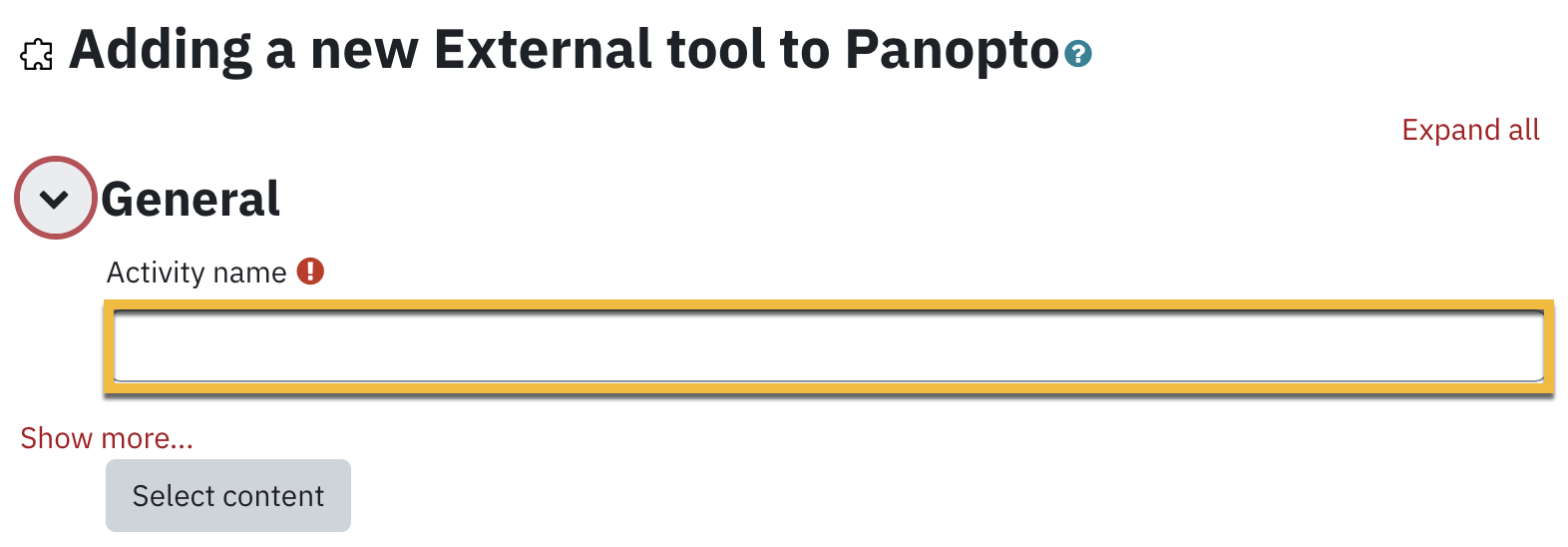
5. Click Save and return to the course to return to the course page.
